Lesson 9 of 10 · about 3 minutes
End of day: cash drawer and today's sales
At closing time, count the cash in the drawer, close the cash drawer, look at today's sales and close the day.
Counting the drawer shows if any cash is short or extra. Closing the day keeps each day's sales separate, so tomorrow starts clean.
Step 1: Open Home. Sales, Expenses and Net show how the day went. Top dishes shows what sold most. (With several outlets, first tap the name at the top and pick the outlet.)
Step 2: On the POS, open the POS menu (the three dots), tap Cash drawers, then Close cash drawer. Check the summary, then tap Verify & Count Cash Drawer.
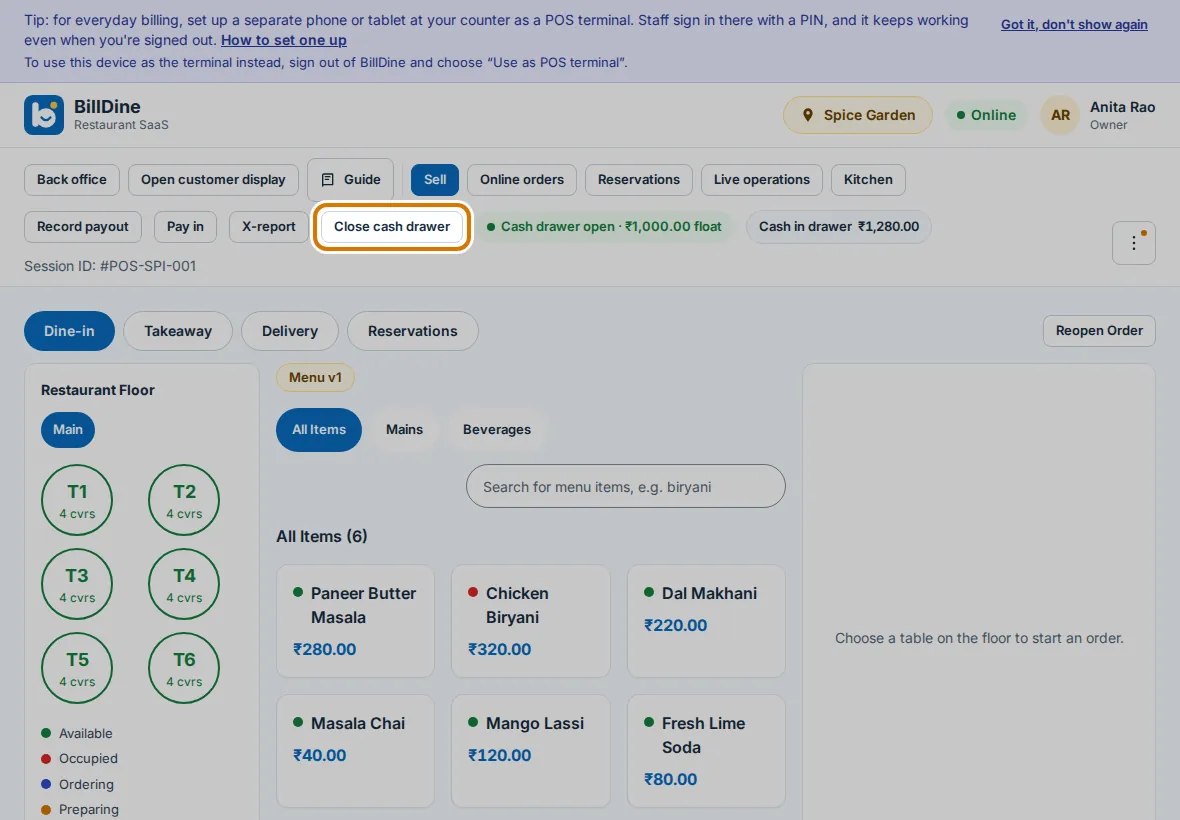
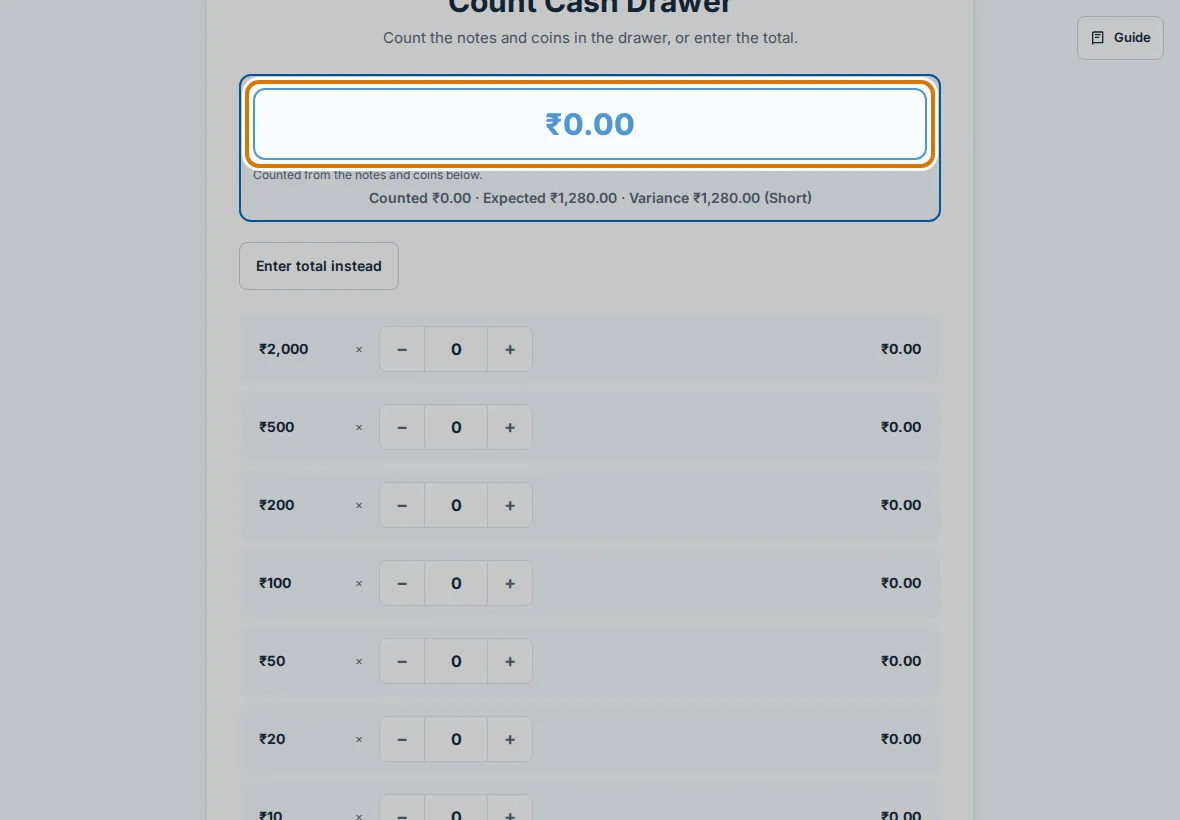
Step 3: Count the notes and coins and type the total in Counted cash. Under Where is this cash going? type what you bank, take to the safe or hand over. Leave it empty if all the cash stays in the drawer. Then tap Close Cash Drawer.
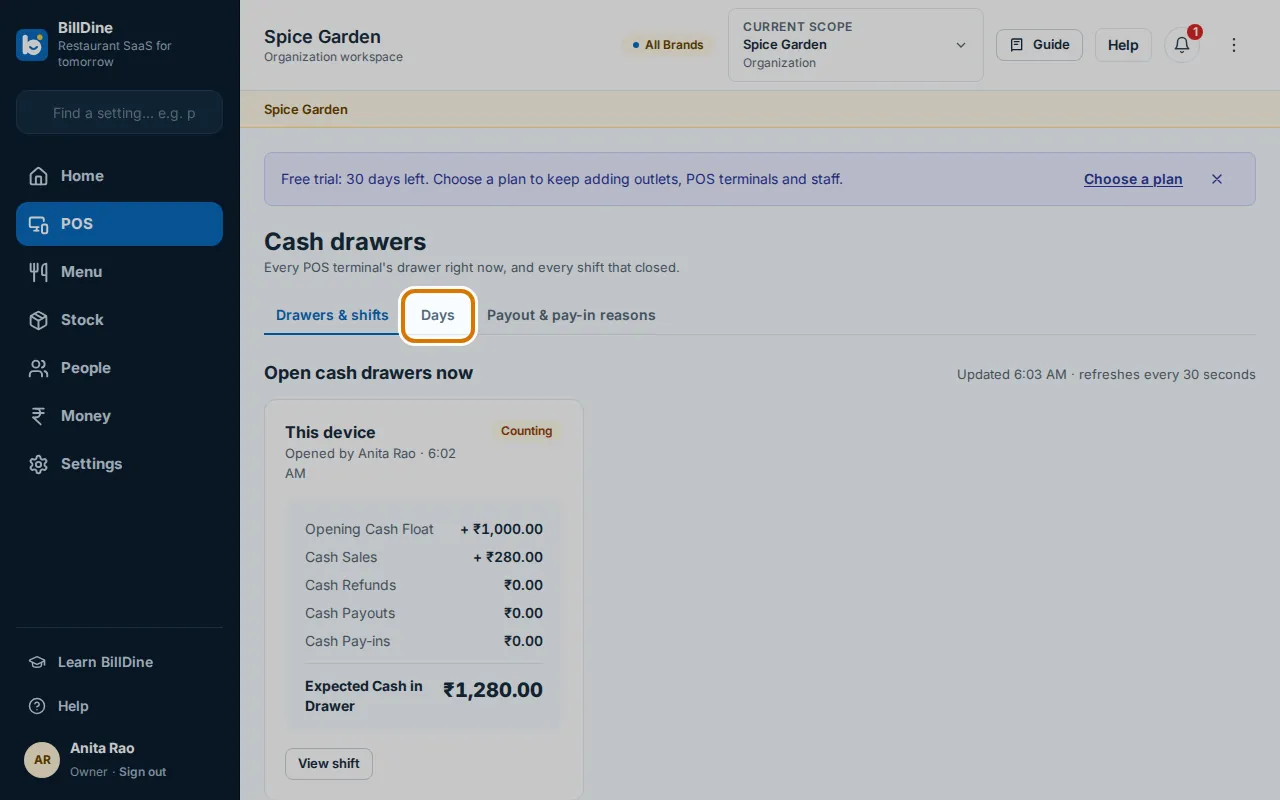
Step 4: Open Cash drawers from the POS menu (the three dots) and open the Days tab.
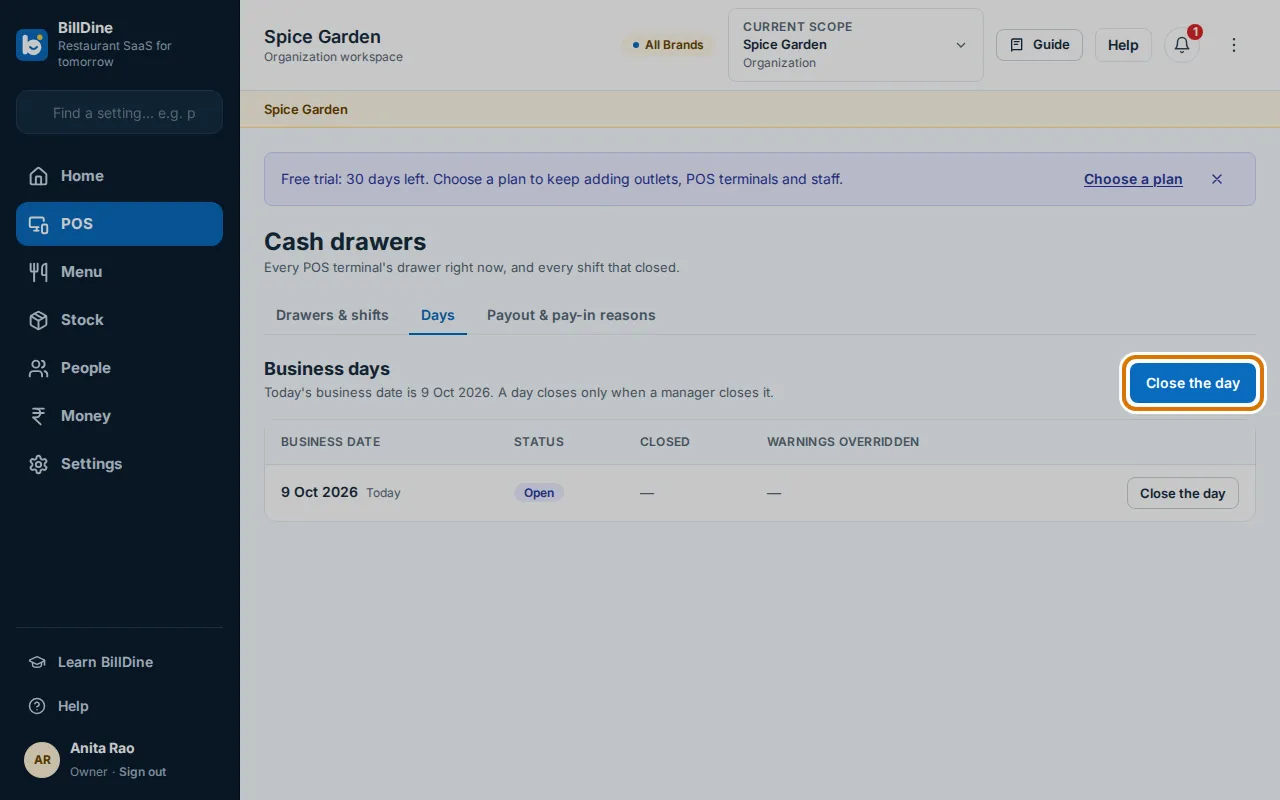
Step 5: Tap Close the day. Read the checks, then tap Close the day again to finish.
You are done when
You see Cash drawer closed successfully on the POS, and the day shows as closed under Days.
If you get stuck
- Counted cash does not match Expected — Count again. If it is still different, write why in Closing Notes; a manager may have to approve it.
- Close the day shows things to check — Finish what it lists, such as an open order or an open cash drawer, then tap Close the day again.
- The count was typed wrongly and the drawer is already closed — A manager opens Cash drawers, taps View on that shift and then Correct the count. The first count is kept.
- The POS says Close yesterday instead of today — An earlier day is still open. Close that day first; today is offered after it.
- The day was closed by mistake — A manager opens that day's Z-report under Days and taps Reopen this day.