Lesson 1 of 10 · about 3 minutes
Set up your restaurant
BillDine made your restaurant and its six tables from your sign-up, with a few days of sample orders to explore. Add your address and tax details when you are ready.
Everything else — the menu, orders, bills and reports — belongs to your restaurant. You went straight in when you signed up; your address and tax details are asked for later, and you need them to go live.
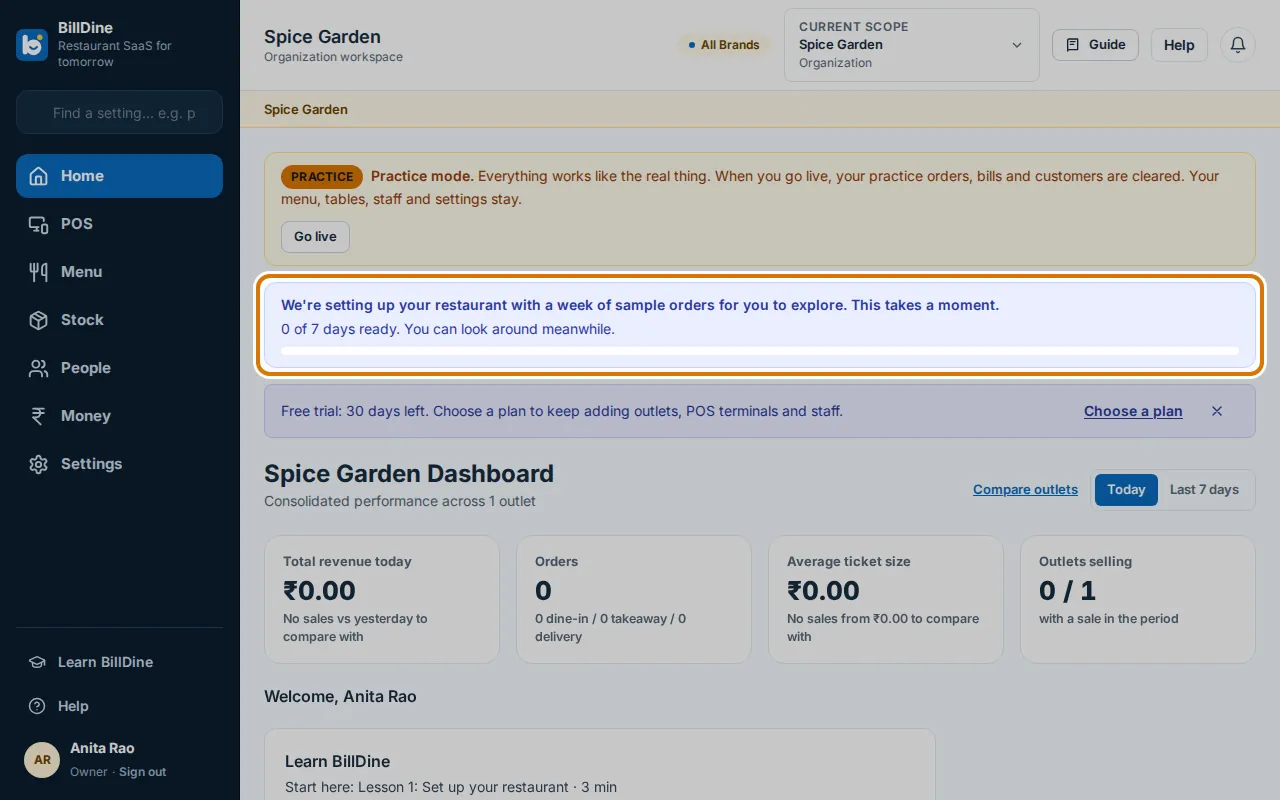
Step 1: After you sign up you are on Home. Tap OK on Welcome to BillDine, then answer the two quick questions or tap Skip. A notice shows how many sample days are ready; look around meanwhile.
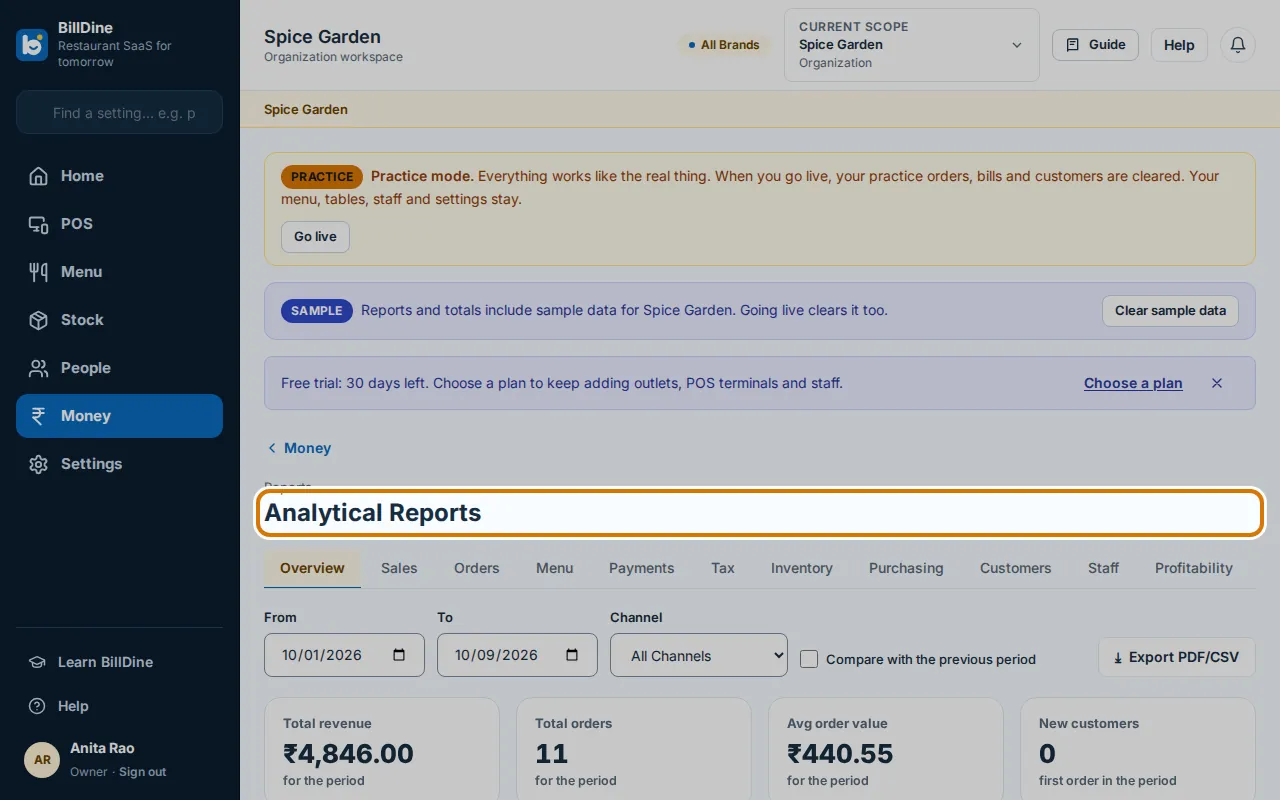
Step 2: When the notice goes away, open Reports to see the sample days. Nothing here is a real bill.
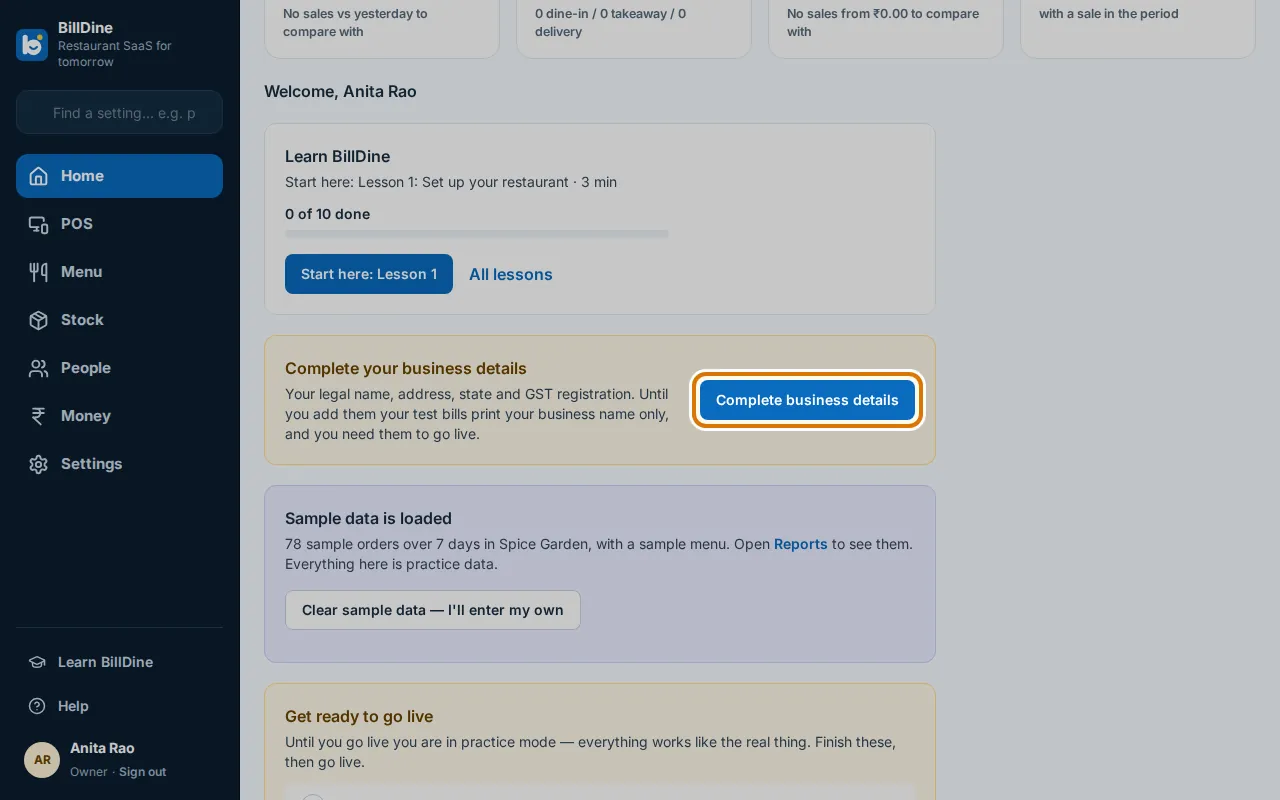
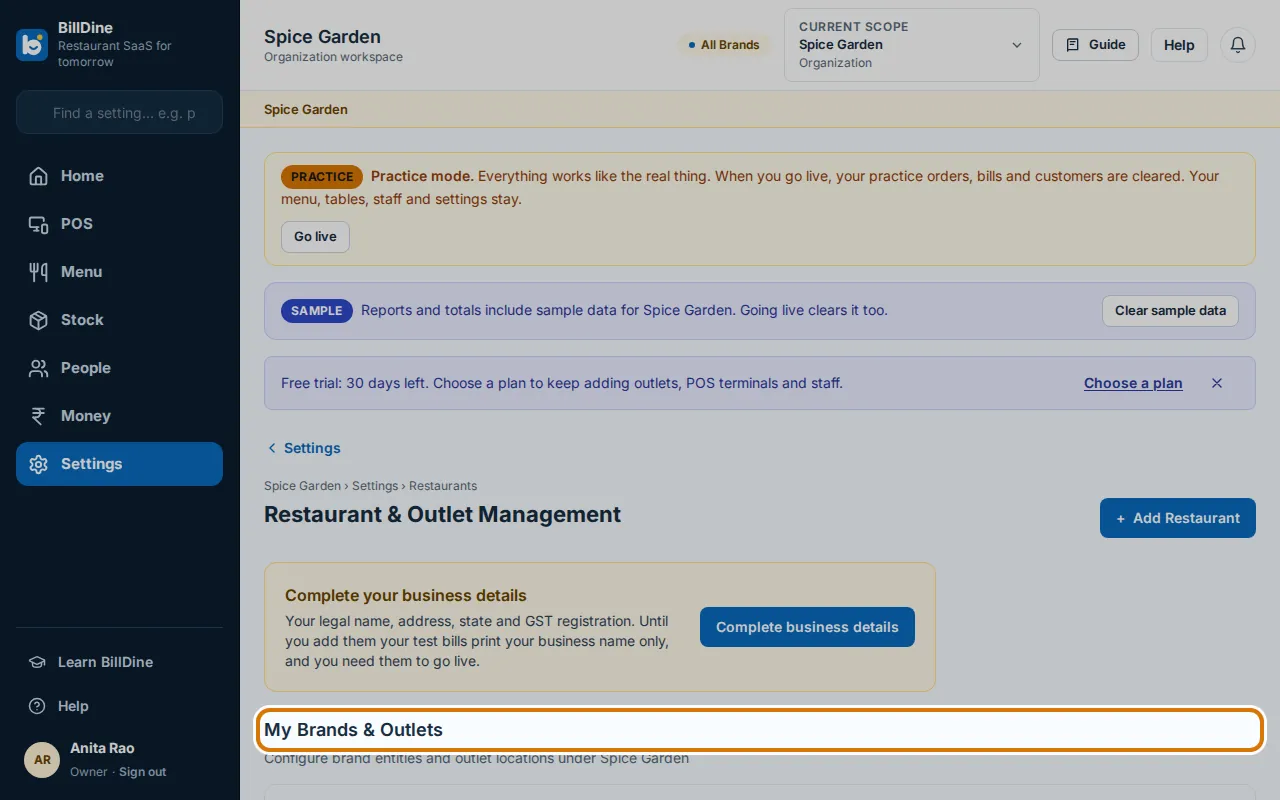
Step 3: On Home, find Complete your business details and tap Complete business details.
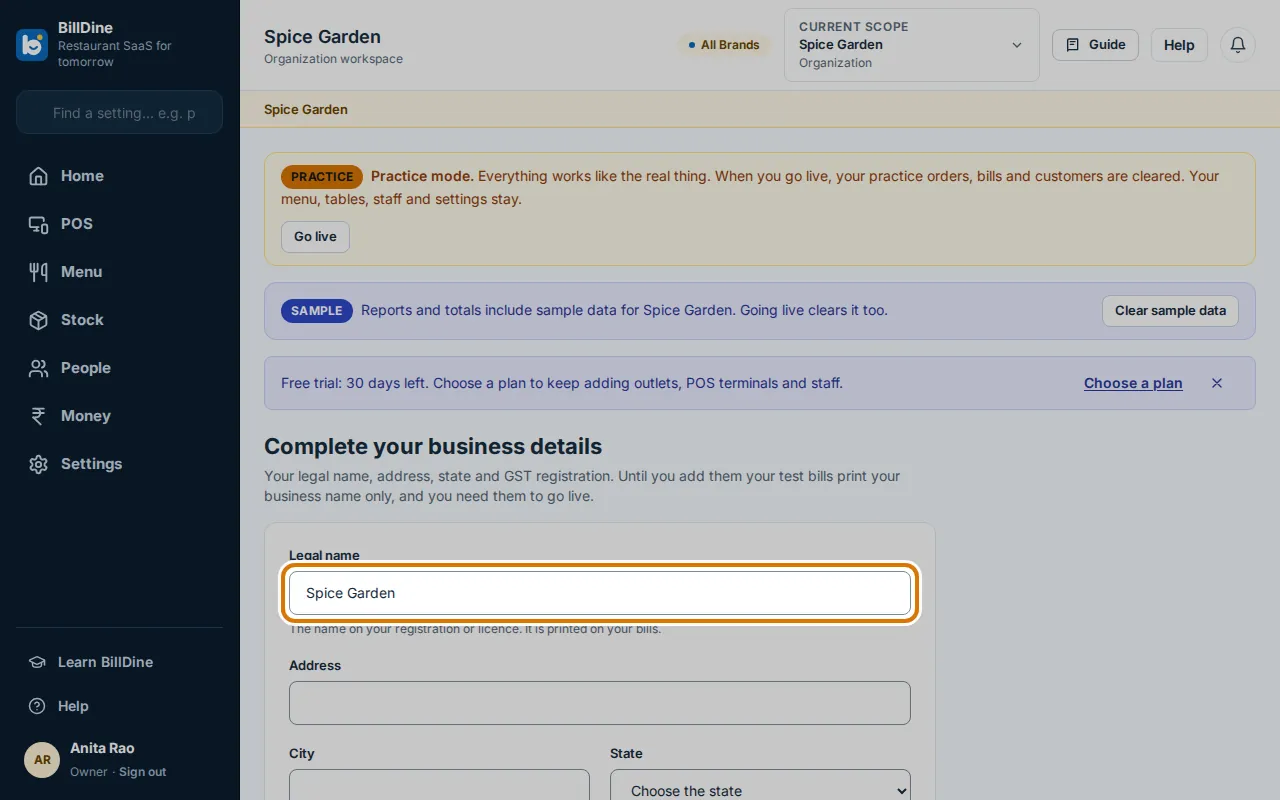
Step 4: Type your Legal name, Address and City, choose your region and type your postal code (the screen names them as your country does).
Step 5: Choose your Tax status. If you are registered, type your tax number. Then tap Save business details.
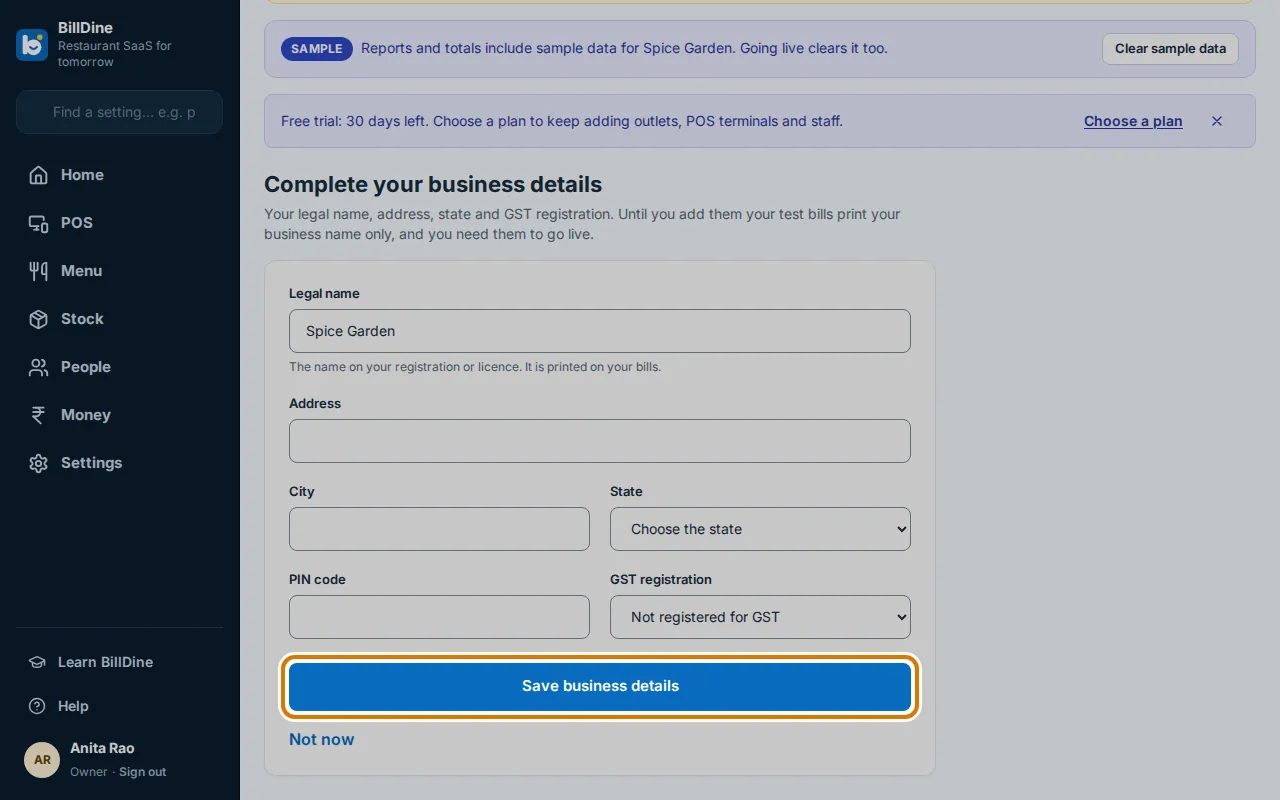
Step 6: To change any of these later, open Settings and, under Business, tap Business details, change it and save again. Your restaurant's name, address and opening hours are under Your restaurant.
You are done when
Home says Sample data is loaded, and the Business details page says Your business details are saved.
If you get stuck
- Home still says We're setting up your restaurant — The sample orders are still being written. It takes a moment; you can look around meanwhile.
- Home says Finish setting up your business — Your restaurant is not set up yet. Tap Set up business and answer the questions.