Lesson 5 of 10 · about 3 minutes
Tables and kitchen tickets (KOT)
Add your tables, send an order to the kitchen as a KOT (kitchen order ticket), and mark it done on the kitchen screen.
Tables show the cashier who is sitting where. A KOT tells the kitchen what to cook, so nobody has to shout or carry paper slips.
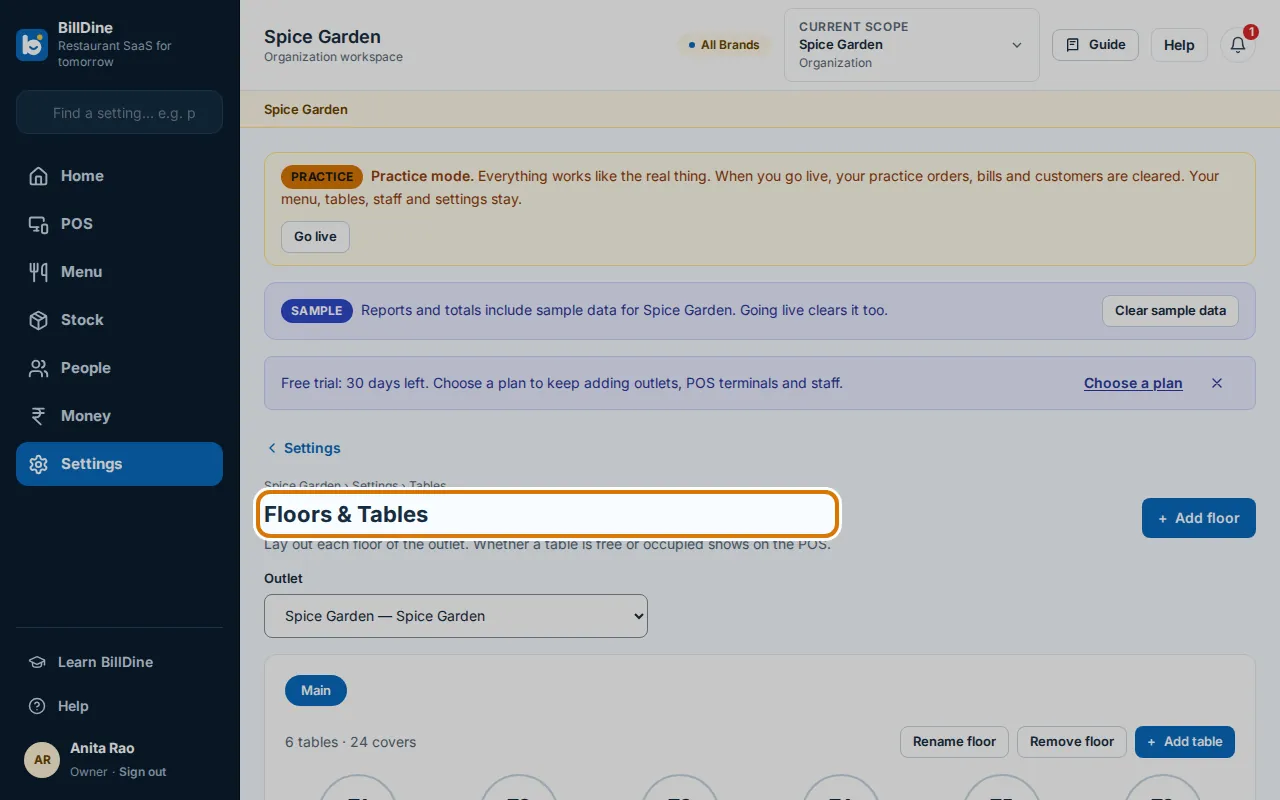
Step 1: Open Settings and, under Business, tap Tables. The page is called Floors & Tables.
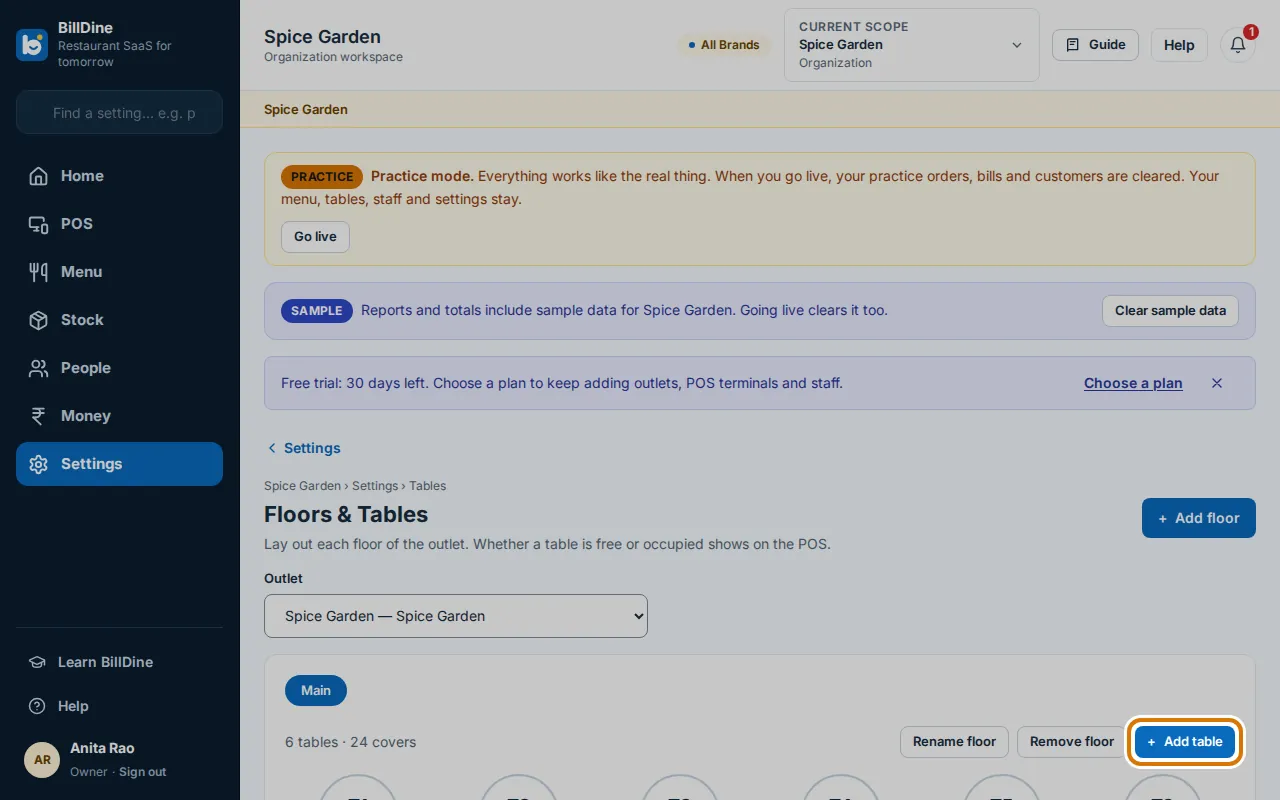
Step 2: Tap Add table. Type a Table code such as T7 and the number of Seats, then tap Add table.
Step 3: In POS, tap a table and add items. Then tap Send to kitchen. The items go to the kitchen.
Step 4: Tap the three dots at the top right of the POS, then Kitchen. New tickets show in the column called New.
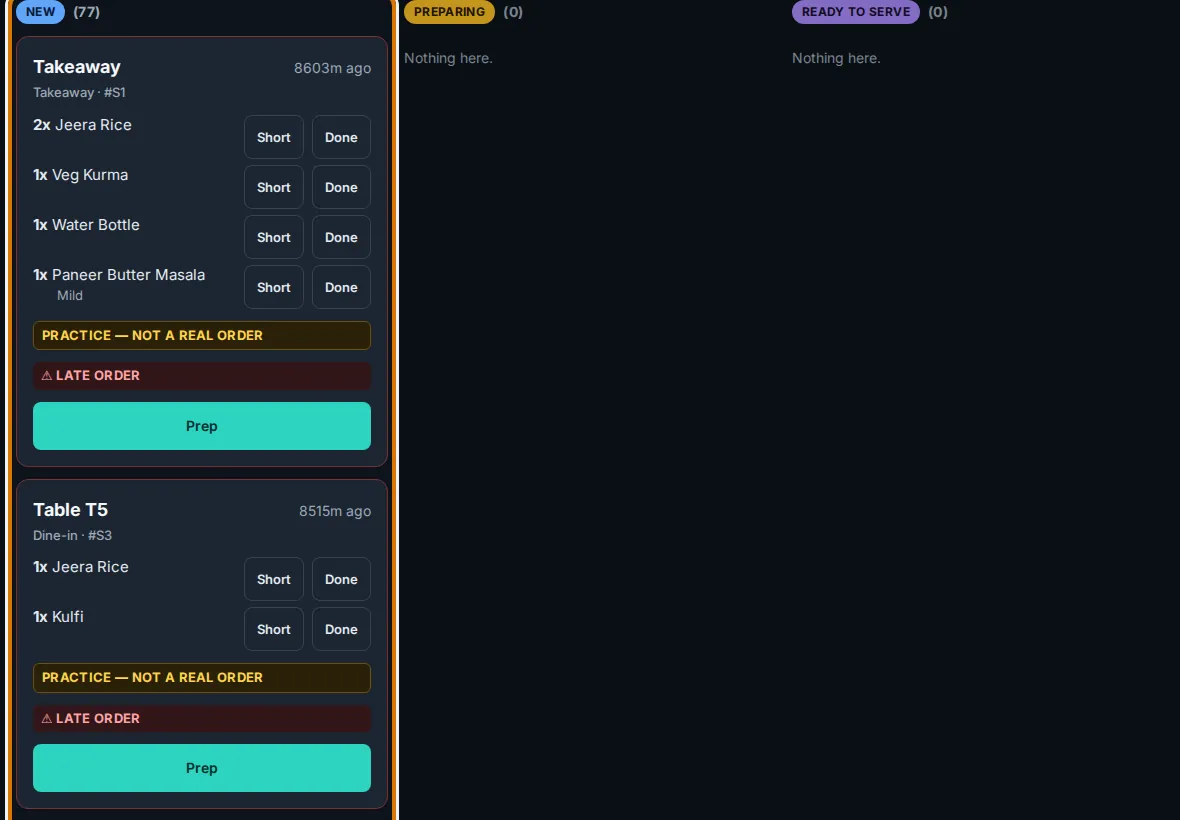
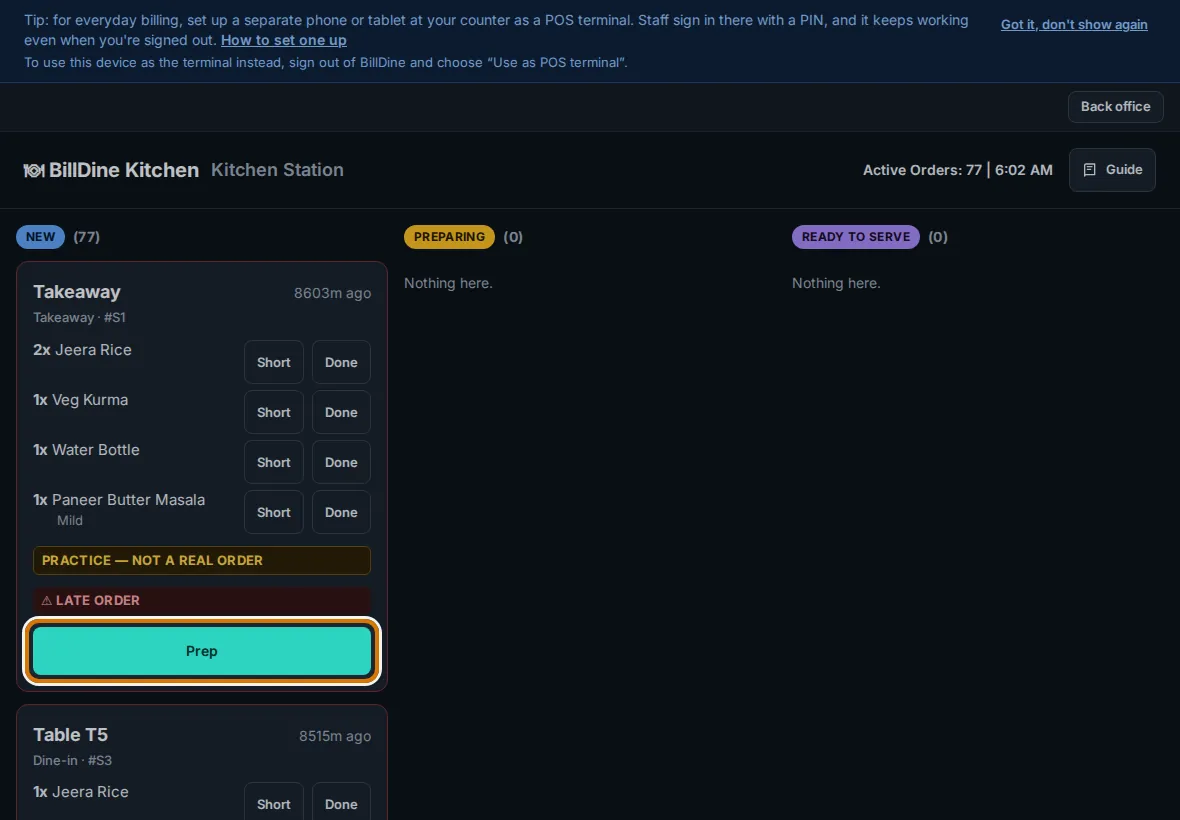
Step 5: When the cook starts, tap Prep. When the food is ready, tap Done. When it is served, tap Served.
You are done when
The table shows as busy on the floor, and the ticket moves from New to Preparing to Ready to Serve on the kitchen screen.
If you get stuck
- You don't see Add table — Add a floor first with Add floor, such as Ground floor.
- The kitchen screen asks Which station is this screen? — Tap the kitchen section this screen is for, such as Kitchen.