Lesson 7 of 10 · about 3 minutes
Add your staff and give them a PIN
Add a cashier or waiter with their name, their role and a 6-digit PIN. They sign in at the POS with the PIN. No email is needed.
Each person signs in with their own PIN, so every order and bill shows who made it. The role decides what they may do, such as giving discounts.
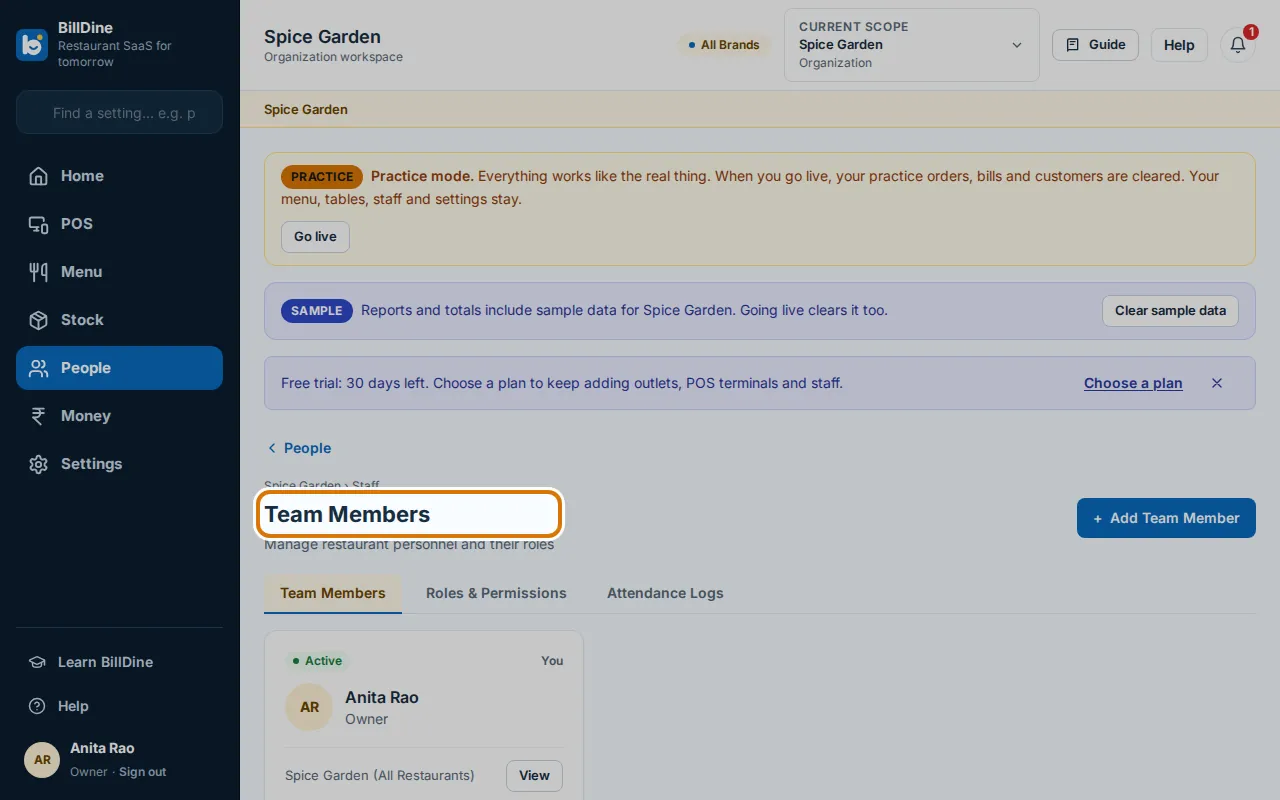
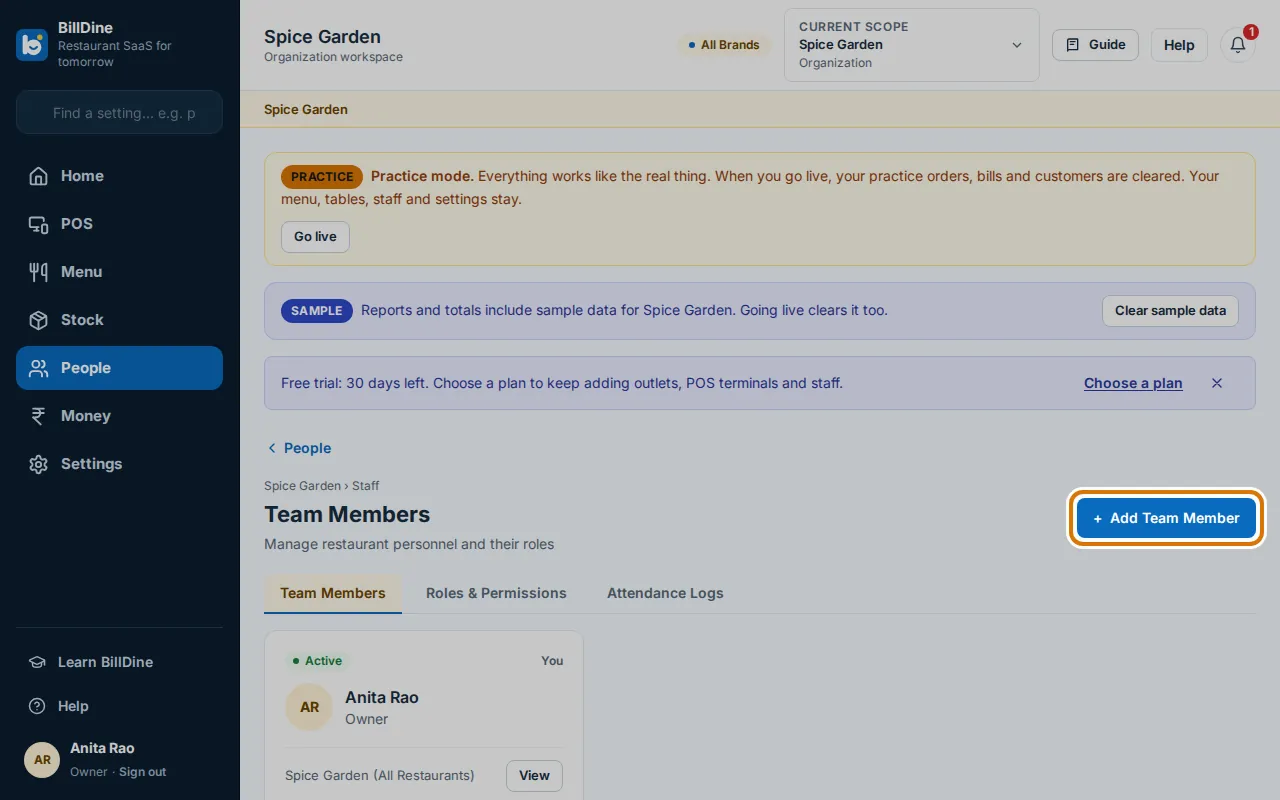
Step 1: Tap People in the main menu (on a phone in the app: the three lines at the top left, then People), then the Staff tile. The page is called Team Members.
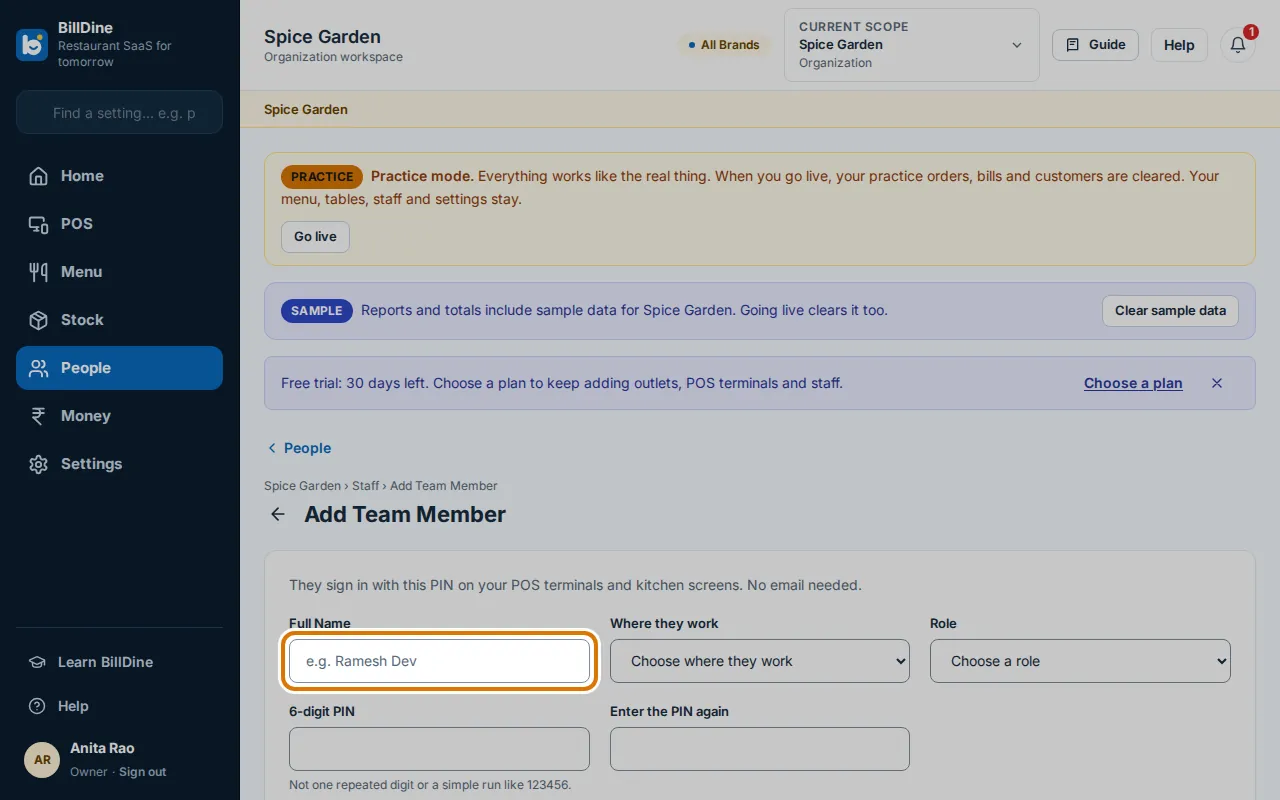
Step 3: Type their Full Name and choose their Role, such as Cashier. (A business with several outlets also chooses Where they work.)
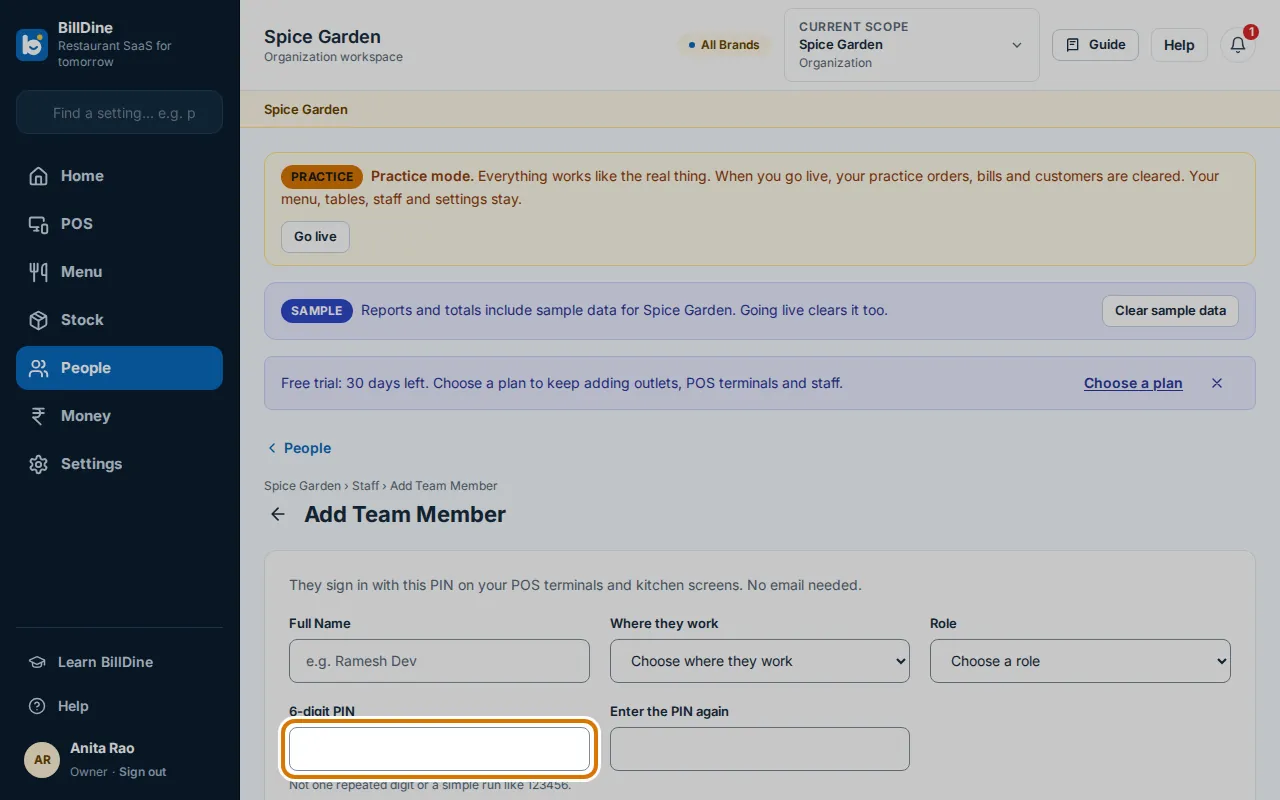
Step 4: Type a 6-digit PIN for them, and type it again in Enter the PIN again. Tell them the PIN yourself.
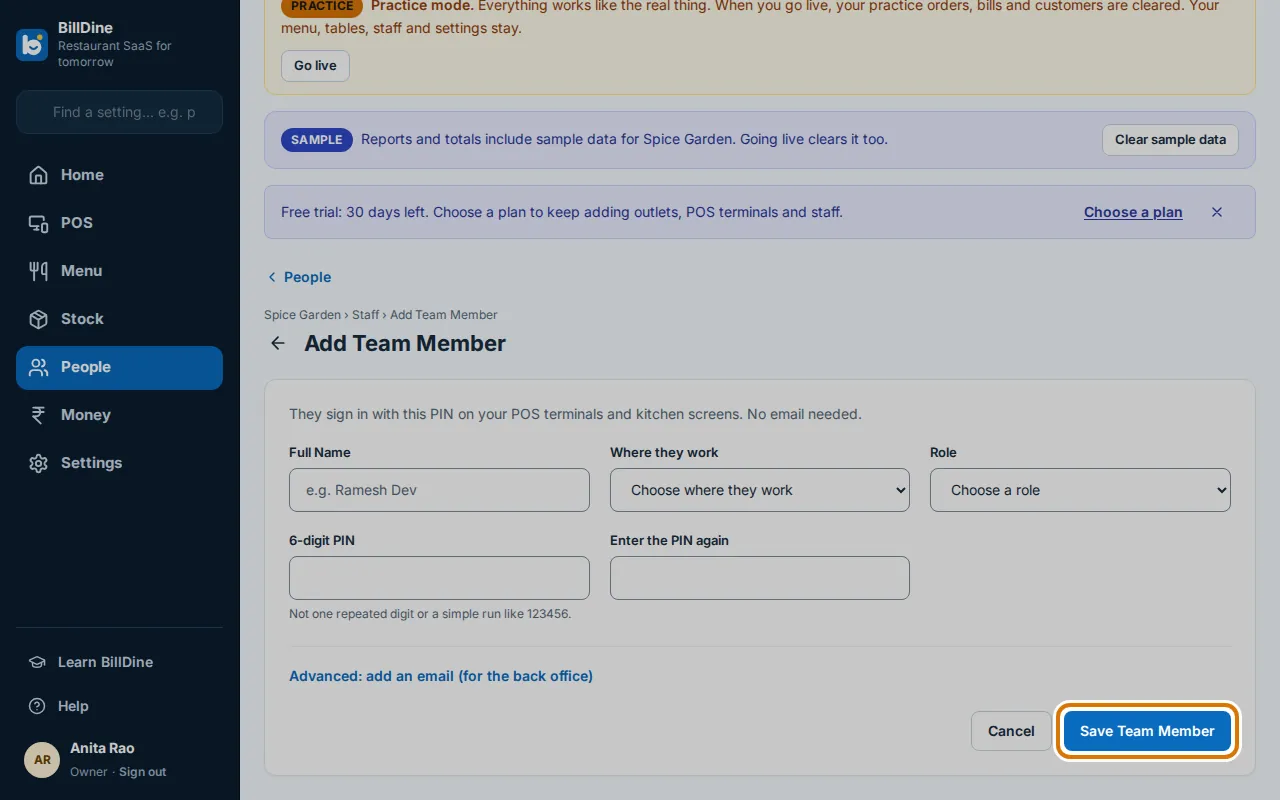
Step 5: Tap Save Team Member. They can now sign in at the POS with their name and PIN.
You are done when
The page says the person is added, and their name shows on the POS terminal's sign-in screen.
If you get stuck
- The PIN is refused — Use 6 digits that are not one repeated digit or a simple run like 123456.
- They need the back office too — Tap Advanced: add an email (for the back office) and type their email. They get an invitation.
Next: Lesson 8: Use a tablet at the counter as a POS terminal