Printing that works without a setup project
Three ways to print
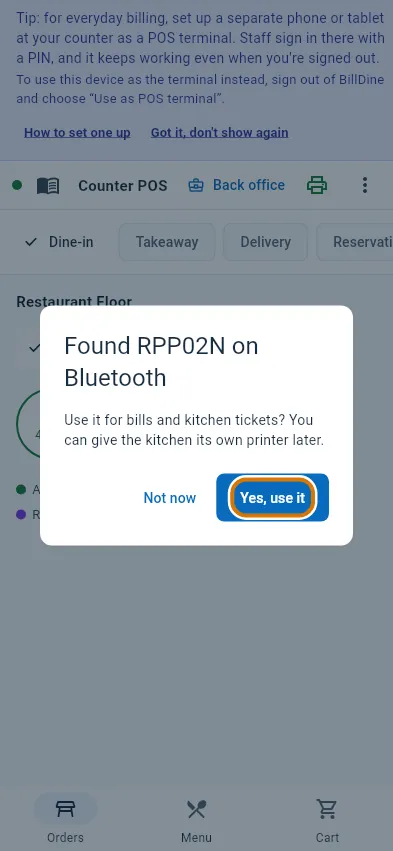
The main way is the BillDine app on an Android phone or tablet at the outlet. It looks for Wi-Fi printers on its network and Bluetooth printers paired to it, asks whether to use the one it found, and prints a test page. From then on it prints bills and kitchen tickets for the outlet — including orders taken on a computer.
In a browser, nothing needs setting up: a bill or a kitchen ticket opens the browser's print dialog, so any printer the computer can use works, including a USB receipt printer. An outlet with no Android phone or tablet can install BillDine Printer Helper, a small Windows program that sends jobs to Wi-Fi and network printers. Whichever way you print, the same bill layout and the same kitchen sections apply.
Kitchen tickets where the food is made
Each kitchen section — grill, bar, desserts — can have its own printer, and BillDine prints each order's dishes at the section that makes them. Several sections can share one printer and still get a slip each. A pass copy can print the whole order on one ticket for whoever checks plates at the pass.
When a dish is cancelled after it went to the kitchen, the section prints a void slip in large white-on-black letters, VOID - DO NOT MAKE, with the dish crossed out, so nobody cooks it by mistake.
Your bill, your layout
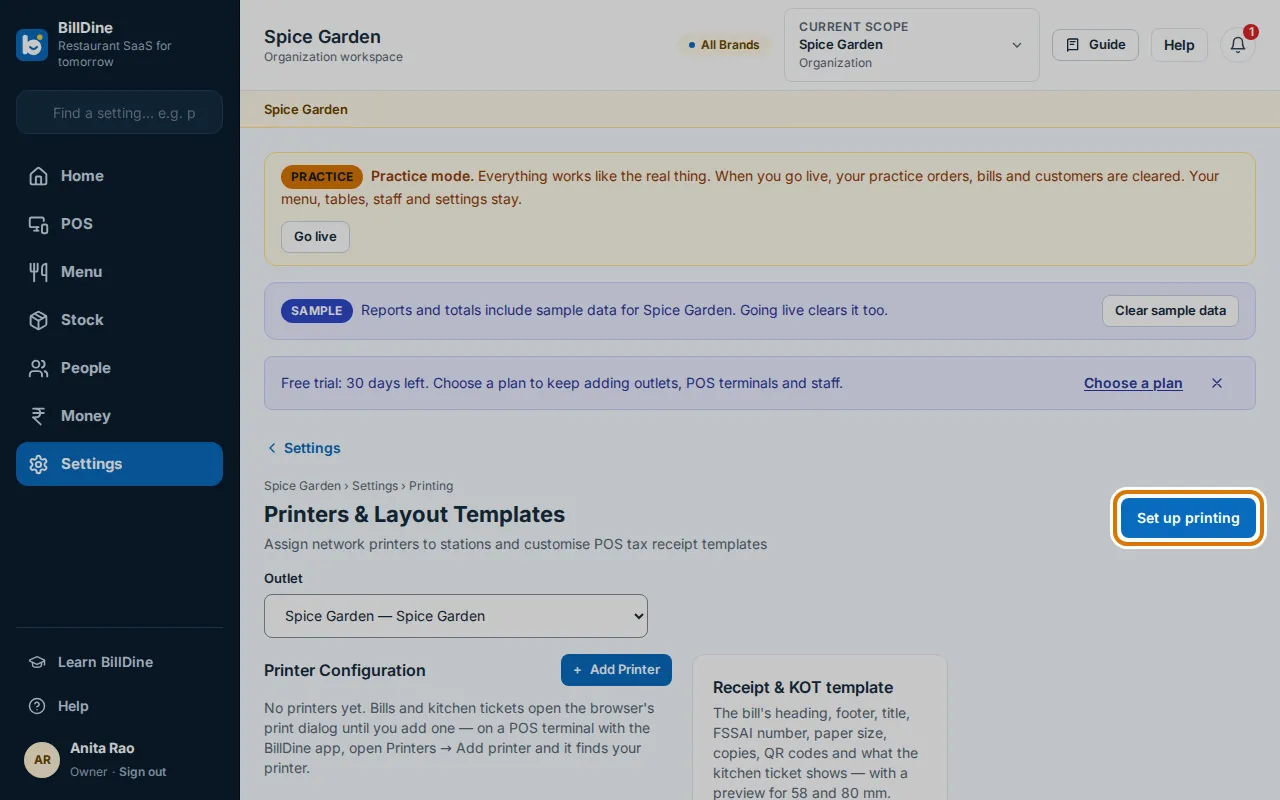
Settings → Devices & printing → Receipt & KOT template decides what the bill and the kitchen ticket show: the title (it follows your country unless you choose your own), a heading and an extra line, your legal name, address, phone and tax number, the order details, the totals' lines, a footer message and a feedback or social link, optionally as a QR code. Choose 58 mm or 80 mm paper, how many copies print, and whether the bill prints by itself after payment. The preview shows the result before you save.
Each outlet chooses the language its bills and kitchen tickets print in; the words you typed yourself stay as you wrote them. Scripts a receipt printer can't print as text, such as Hindi or Tamil, are printed as a picture.
One original, and every copy marked
After a bill is paid there is one Print button. The first copy is the original; every later copy is headed DUPLICATE, so a guest is never handed two originals. Every reprint, and every bill changed after the guest had one, is listed in Reports → Controls.
Bills before and after payment
Before payment, Print Bill prints a pre-bill the guest can check at the table, and a waiter can print it and send the order to the cashier in one step. In the app on Android, printing carries on with the screen off once you allow it, and Android shows that BillDine is printing.
When a print fails
If a kitchen ticket doesn't print, the order is still fine — only the paper is missing — and the order shows a line such as 2 KOTs not printed. Tap it to retry once the printer has paper, print it from the browser instead, skip it with a reason, or cancel it. Skipped prints are counted in the shift report. Print history shows every job and each attempt, and Live operations shows each printer as OK or with today's failures.
If a router restart gives a printer a new address, its card says it can't be reached; Find it again looks for it on the Wi-Fi and offers the new address.
Several devices, one outlet
With several POS terminals, one prints for the outlet's Wi-Fi printers and the others wait on standby; if it goes offline, another takes over by itself. A Bluetooth printer prints from the device it is paired to. Offline, the app keeps printing on the printers it can reach, and anything it can't print is kept until it can.
Questions
- Which printers work with BillDine?
- Thermal receipt and kitchen printers. The BillDine app on Android prints to Wi-Fi printers on its network and Bluetooth printers paired to it; a browser prints to any printer the computer can use, including USB; BillDine Printer Helper on Windows drives Wi-Fi and network printers.
- Do I need a computer to print?
- No. An Android phone or tablet with the BillDine app and one thermal printer are enough for a small outlet.
- What happens when a kitchen ticket fails to print?
- The order is kept and shows the ticket as not printed. Retry it, print it from the browser, skip it with a reason or cancel it; a kitchen screen, if you have one, shows the ticket anyway.
Learn it step by step
More features
Who it's for
Ready when you are
Create your account and go straight in: no set-up questions, and a few days of sample orders to explore. Your free trial starts when you sign in.
Setting up a POS terminal or kitchen screen? Use this device as a terminal