The kitchen screen: every order, at the right counter, the moment it is sent
How an order reaches the kitchen
Staff take the order on the POS and press Send to kitchen. BillDine splits it into one kitchen ticket (KOT) per kitchen section — the grill, the bar, the dessert counter — so each counter sees only what it makes. You decide which categories and dishes each section makes in Settings → Devices & printing → Kitchen, and a single dish can go to a different section from the rest of its category.
Each section can have a kitchen screen, a printer, or both. A section with no printer sends its tickets to its kitchen screen only, and a kitchen that works from paper keeps working exactly as it does today. When a waiter adds more dishes to an open order, only the new dishes go to the kitchen, on a ticket of their own.
What the cooks see
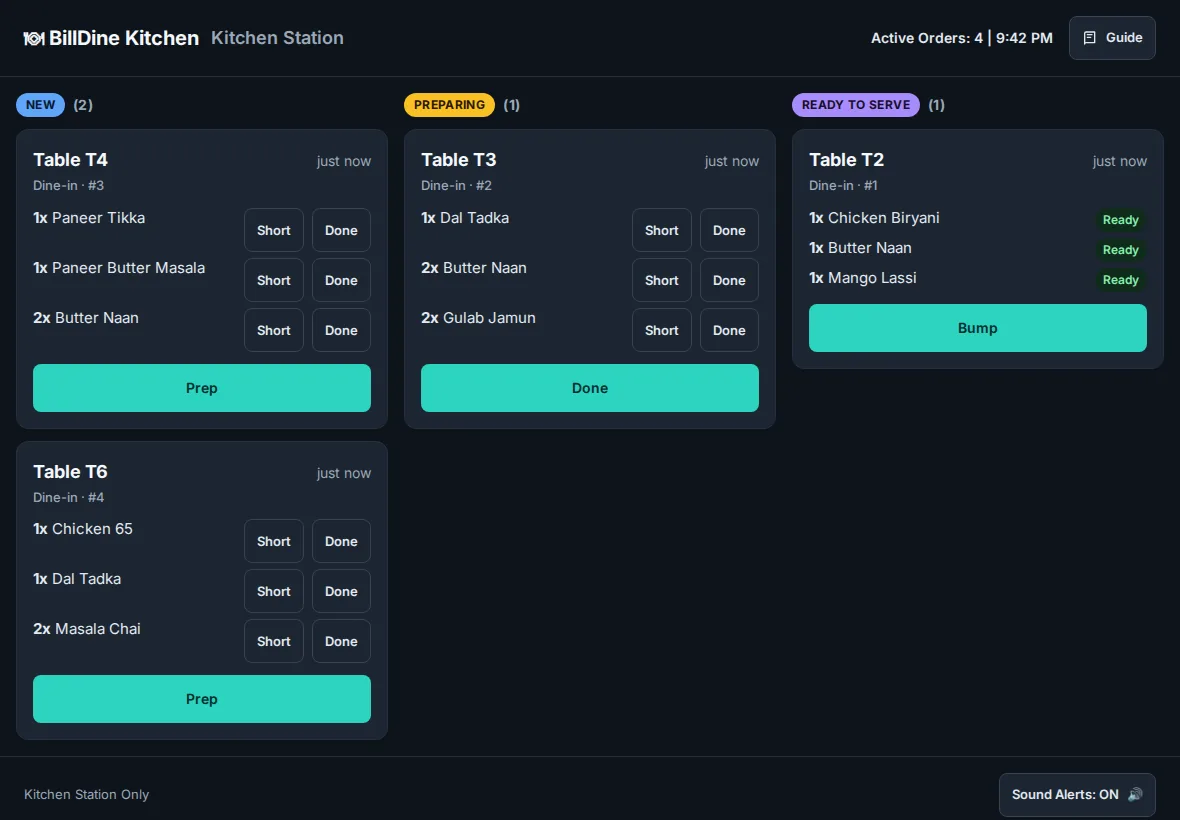
New tickets arrive with a chime in the NEW column, oldest first. A cook taps Prep to move a ticket to PREPARING, Done to move it to READY TO SERVE, and Served to clear it. Done beside a single dish finishes just that dish, and Clear all ready serves every ready ticket at once. Each ticket shows the table or order number, the dishes and their notes for the kitchen.
Late tickets are marked LATE ORDER, so they stand out before anyone has to ask. A dish a guest sent back arrives as a REMAKE ticket. When a ticket already on the screen changes — a dish cancelled, a quantity lowered, a whole order cancelled — it flashes red with its own alarm and says what changed until a cook taps OK. The To cook count adds up how many of each dish are still to make across every ticket, which helps when ten tables all want the same curry.
A wrong tap is easy to undo: Undo puts the ticket back where it was, and Recently served brings back a ticket served by mistake.
The floor and the kitchen talk without walking to the pass
On the POS, a waiter can press Rush on a table that has waited too long. The ticket jumps to the top of its column marked RUSH, and a section with a printer also prints a large RUSH slip with the dishes still to come. If food will take longer, the kitchen taps Running late and picks how many minutes; every POS shows it for a moment, and the order says so, so the waiter can tell the guests before they ask.
A new round from a table that was already served comes to the kitchen marked PRIORITY, so guests sitting with empty plates are not left waiting behind tables that have only just ordered. With courses turned on, the starters go to the kitchen at once and the waiter fires the mains when the table is ready; held courses show greyed on the kitchen screen so the cooks can plan.
Each POS also sees where every sent dish stands — New, Preparing, Ready or Served — and chimes when the kitchen finishes an order. The counter can answer “is my order ready?” without a walk to the kitchen, and paid takeaways wait in a To collect list until they are handed over.
When something runs out
A cook can tap Short beside a dish the kitchen cannot make, and the floor sees it at once. When a dish is gone for the day, Sold out today stops anyone at the outlet from ordering it for the rest of the business day; it comes back by itself the next day. Portions sets how many are left today, and the POS counts them down as they sell.
When the internet drops
If the internet goes down, the kitchen screen shows a red NOT UPDATING warning, so nobody assumes all is well. Turn on Kitchen screens over Wi-Fi when offline, and the POS terminal that prints for your outlet passes new tickets to the kitchen screens over your own Wi-Fi; they arrive marked WI-FI and chime as usual, and Prep, Done and Served work on them. When the internet is back, BillDine carries on from its own tickets with nothing shown twice. This needs the BillDine app on the kitchen screen and on the POS terminal.
What you need to start
Any Android phone or tablet with the BillDine app, or a computer or tablet with a modern browser. Add it as a kitchen screen in Settings → Devices & printing → POS terminals and kitchen screens, scan the code or type it on the kitchen device, and the cook signs in by tapping their name and entering their PIN. Then choose which station the screen shows, or All stations. Sideways, the New, Preparing and Ready columns sit side by side; held upright, the cook switches between them at the top.
Questions
- Do I need special hardware for a kitchen screen?
- No. Any Android phone or tablet with the BillDine app, or any device with a modern browser, can be a kitchen screen. A larger tablet held sideways shows all three columns at once.
- Can I use printed kitchen tickets and a kitchen screen together?
- Yes. Each kitchen section can have a printer, a kitchen screen or both. A section without a printer sends its tickets to the kitchen screen only.
- What happens to new tickets when the internet is down?
- The kitchen screen warns that it is not updating. The BillDine app keeps printing kitchen tickets on your Wi-Fi printers, and with Kitchen screens over Wi-Fi when offline turned on, it passes new tickets to the kitchen screens over your Wi-Fi.
Learn it step by step
More features
Who it's for
Ready when you are
Create your account and go straight in: no set-up questions, and a few days of sample orders to explore. Your free trial starts when you sign in.
Setting up a POS terminal or kitchen screen? Use this device as a terminal